
A second line for every technician
Control the screen, send files and ask the AI assistant what to try next, all in one session.
Meet the AI assistant →
Help arrives without the drive across town
Your customer reads out a nine-digit ID and clicks Accept. They see who is connected and can end it at any moment.
How it works →
It suggests. You decide.
Built-in checks find the obvious faults; the AI reads the rest and proposes the next step. It never acts on its own.
See what it sends →
Every office PC, one console
Unattended access, services, inventory and background management, with a shared address book for the team.
Enterprise plan →
Encrypted, visible, and always in the user's hands
Consent before every connection, a banner during it, signed updates after it.
How it stays safe →
Made where a dropped line is an ordinary day
Transfers resume, prices come in shillings, and you can pay by M-Pesa. It works the same anywhere.
Read the story →Software that solves one problem well
Vukalink is the first. Each new solution will be added here with its own page and its own prices.

Vukalink
Remote support for any computer. See and control a computer over the internet, send large files, and reach office PCs when nobody is there. For Windows.
Open Vukalink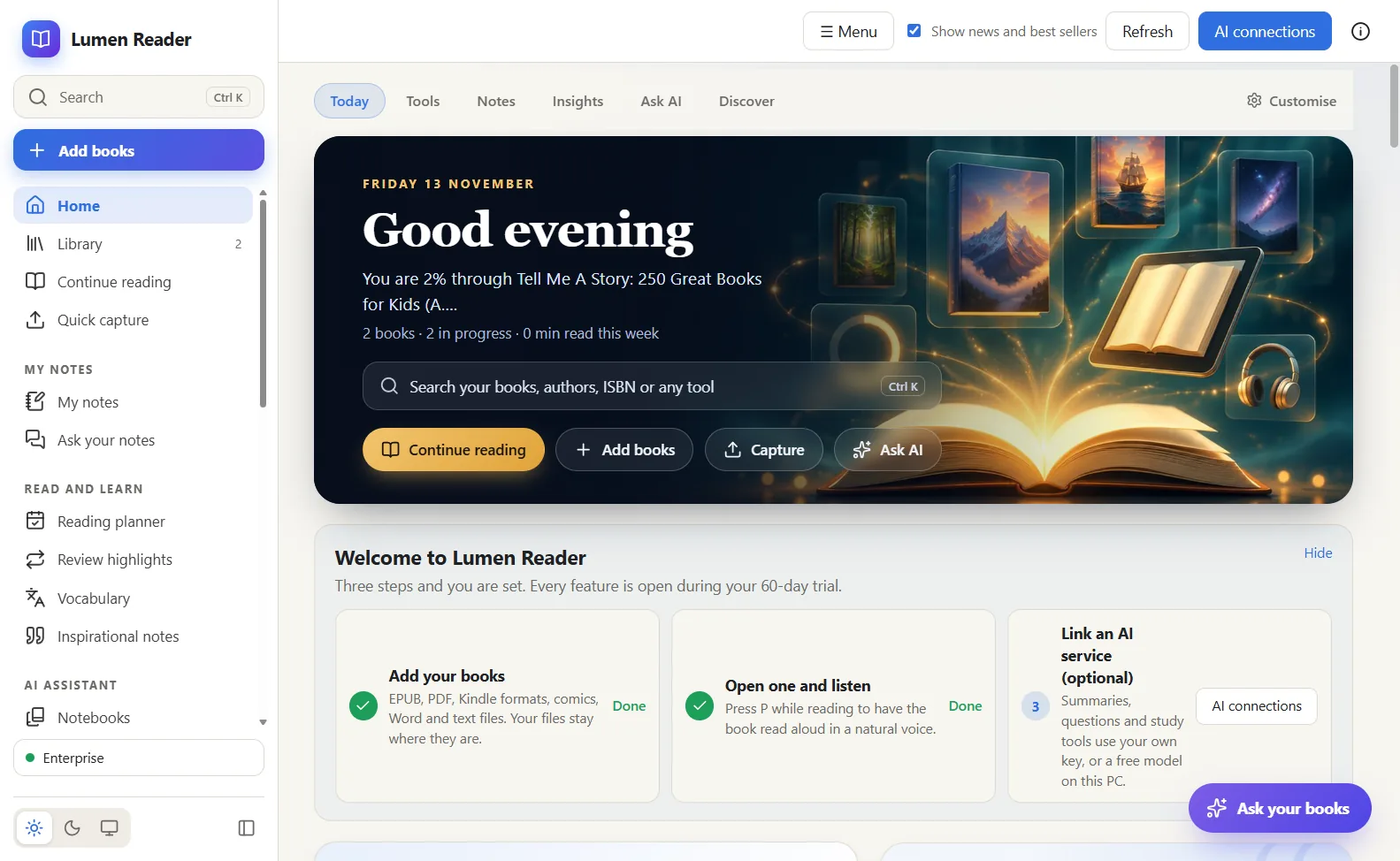
Lumen Reader
Read, listen and study with AI. Every ebook and document format, natural-voice read aloud on your PC, and notebooks that answer from your own sources with citations. For Windows.
Open Lumen ReaderMore solutions
Further tools from the same developer will be listed here when they are released, each with its own page and prices.
To hear first, write to support@nyumbasuite.com.
For the people who keep computers working
Independent technicians
Support forty offices from one desk. One seat, monthly if you prefer, and your customers pay nothing.
Small businesses
Get help without waiting for a visit. You see who is connected and you can end it at any moment.
IT teams
Reach every office PC and server, share one address book, and manage machines without interrupting the user.
Illustrations. These pictures do not show real customers.
Connected in under a minute
The same small program gives and receives support. Nothing to configure on the router.
Both sides open Vukalink
Each computer shows its own nine-digit ID. The person receiving help needs no account and pays nothing.
They read you their ID
By phone or chat. You type it into your Vukalink and click Connect.
429 316 058They click Accept
They see who is asking before anything is shared. For office PCs and servers with nobody present, use the unattended password that PC's owner has set.
Work together
Control the screen, chat, send files. A banner shows on their screen the whole time, and either side can end the session at once.
A second opinion inside every session
Vukalink reads what the remote computer has already told you, flags the ordinary faults by itself, and then lets you ask an AI model what to try next. It advises. You decide, and you do the work.
1 Built-in checks
No AI. Runs on your own PC.
2 Ask AI
You see and edit what is sent.
3 Suggested next steps
Advice only. Nothing is run for you.
- Free space on C: first. Outlook needs room to write the attachment.
- Restart to finish the pending updates.
- Test the line again; 12% loss will also break large downloads.
Illustration of the assistant with example values.
It finds the obvious first
Full disks, exhausted memory, a month without a restart, a line that drops packets, a DNS fault. Checked on your own PC, with no AI service involved.
You read it before it is sent
Ask AI builds its question from what you have already seen in the session, removes passwords, keys and tokens, and shows it in a box you can edit. Nothing goes until you press Send.
Your provider, or none
Use your own account with Claude, ChatGPT or Gemini, another compatible service, or a local model through Ollama so that nothing leaves the building.
Advice only
The assistant cannot click, type or change a setting. Every step is carried out by you, with the same permissions and the same log as before.
Included in Premium, Enterprise and the 60-day trial. Vukalink adds no charge for AI use: your provider bills you directly, and a local model costs nothing per question. Off until you set it up. How your customer's data is handled
One ring, every tool a technician needs
Tap any card to ask the guide about it.
Support
Reach
 VukalinkREMOTE SUPPORT + AIConnect · Support · Work together
AI
Teams
Trust
Four everyday situations
Short animations of what each side sees. Pick one, or let them play.
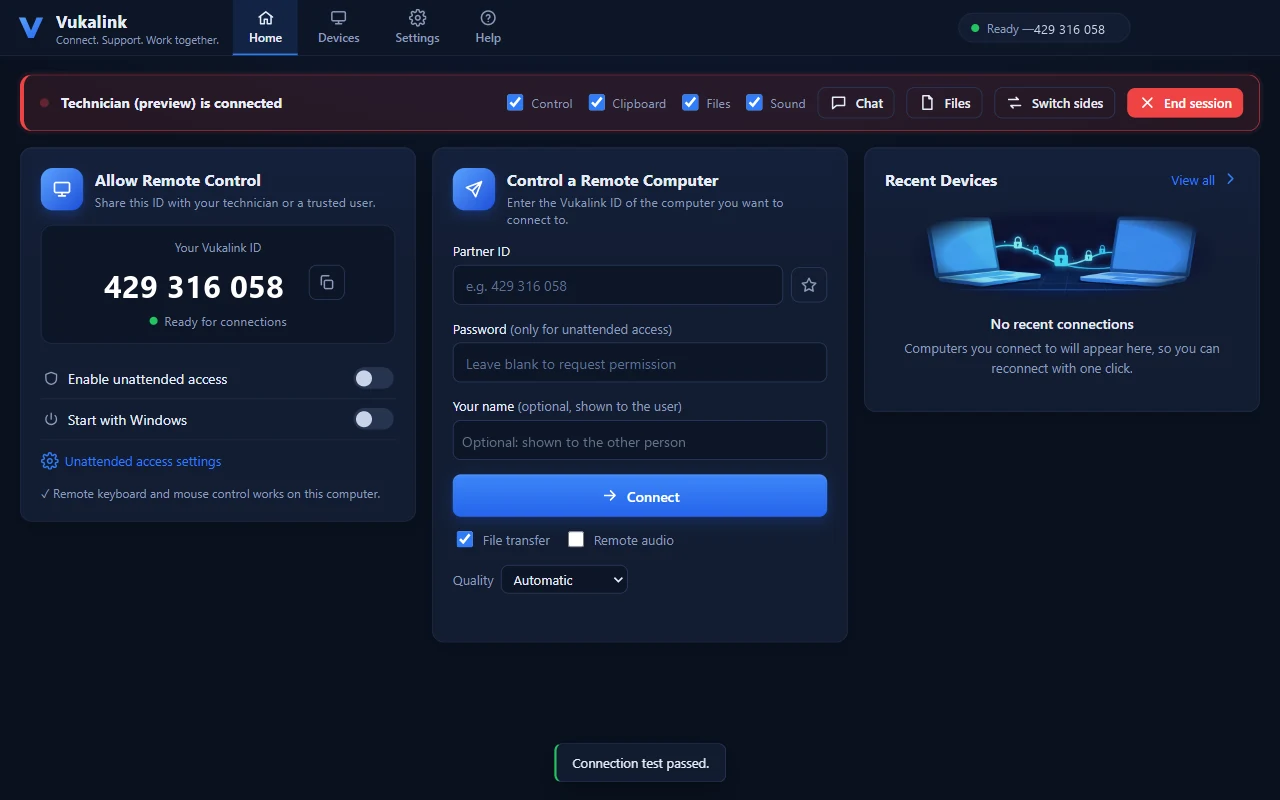
The customer reads out their ID and you type it. They see who is asking and click Accept. You work on their screen while a banner shows on it, and either side ends the session with one click.
What is in the program
Everything below is included in the 60-day trial. The right-hand column shows which plan keeps it afterwards.
- AI assistant
- Reads the system details, diagnostics and your notes, and suggests what to try next. Advice only. Works with Claude, ChatGPT, Gemini, other compatible services, or a local model. Premium
- Built-in checks
- Flags full disks, exhausted memory, long uptime, packet loss and DNS faults in plain language, with steps. Runs on your own PC with no AI service. In the program
- Session summary
- Who connected, to which computer, when, and what was done. Copy it as text or save it as a file from the History page. In the program
- Control and view
- Mouse and keyboard on the other computer, several monitors, and switching sides when the other person needs to show you something. All plans
- Chat and clipboard
- Talk in a chat window and copy text between the two computers. Each can be switched off from the session banner. All plans
- Unattended access
- Reach office PCs and servers with a password when nobody is there. 2 computers on Free, 100 on Premium, unlimited on Enterprise. All plans
- File transfer
- Files are checked on arrival, and an interrupted transfer continues where it stopped. Up to 1 GB on Free, 100 GB on paid plans. All plans
- Session recording
- A record of what was done, with session history and tickets for your own follow-up. Premium
- Wake-on-LAN
- Start a computer on the office network that has been shut down. Premium
- Tools for IT teams
- Command console, services, programs, inventory and background management without sharing the screen. A team address book. Enterprise
- Your own name and logo
- Branding, mass deployment and reports for companies that support many machines. Enterprise
The person being helped stays in charge
Remote access is powerful, so the rules are simple and visible.
- Nothing happens without consentEvery connection needs a click on Accept, or the unattended password that the computer's owner set.
- Always visibleA banner and a coloured frame show while someone is connected. One click ends the session.
- Encrypted sessionsScreen, input and files travel encrypted between the two computers.
- Signed updatesThe program installs an update only if it carries our signature and its SHA-256 matches. Anything else is refused.
- Little data keptNo account to receive help. To manage the trial we store a one-way hash of hardware identifiers, never the readable values.
What we will not pretend
The installer is not code-signed yet. Windows SmartScreen will say "Windows protected your PC" with an unknown publisher. That is a reputation notice for new software, not a virus finding. Compare the SHA-256 on this page before you run it.
Windows only today. macOS, Linux and iOS are coming; there are no such apps yet.
M-Pesa is available now; automatic confirmation is pending. You order online and pay to our till. Until our Safaricom Daraja integration is live, we confirm each payment ourselves and then your key is issued. Card payment is not available yet.
Free-version limits are enforced on the technician's computer. They are honest limits by amount, with no "commercial use suspected" blocking.
Free to receive help. Simple prices for those who give it.
One window for every solution. Choose a solution, then a billing period and a currency.
Free
- Remote control, chat, clipboard
- 90 minutes of sessions, then a 30-minute break
- Files up to 1 GB
- 2 unattended computers
- Receiving support: unlimited
Premium
- AI assistant, with your own provider or a local model
- No session time limit
- Files up to 100 GB
- 100 unattended computers
- Session recording and Wake-on-LAN
Enterprise
- Everything in Premium, including the AI assistant
- Unlimited unattended computers
- Console, services, inventory, background management
- Team address book
- Your own name and logo, reports
Shilling prices use a list rate of KES 130 to the dollar, rounded up to the next 10. Taxes, if any apply, are not included.
M-Pesa is available now. Place your order, pay to the till and type the M-Pesa confirmation code on the order page. Your key appears there and is emailed to you once the payment is confirmed.
Automatic confirmation through Safaricom's Daraja API is pending, so for now we check each payment ourselves. Card payment is not available yet.
Free
- Every format, highlights, notes, search, dictionary, themes
- Natural-voice read aloud on your PC
- Up to 100 books in the library
- 20 AI requests a day with your own key or a local model
Premium
- Everything in Free, with no book limit and unlimited AI requests
- Notebooks studio, audio overviews, whole-book summaries
- Document converter, notes export to Obsidian and Excel
- Send to Kindle or Kobo, PDF editing and signing
Enterprise
- Everything in Premium for a team
- Company policy file: AI on or off, audit log
- One managed key for all PCs, one invoice
- Priority support
Prices per person. Shilling prices use a list rate of KES 130 to the dollar, rounded up to the next 10. More about Lumen Reader.
Prices for each new solution will appear here
Every solution gets its own tab in this window, with its plans in dollars and shillings. Today there are two: Vukalink and Lumen Reader.
Want to hear when the next one is ready? Write to support@nyumbasuite.com.
Get Vukalink
One installer. The same program gives and receives support.
Windows
Windows 10 and 11, 64-bit. About 76 MB. Version 1.1.19.
SHA-256 7f467e01483d9e18b478256d8ef9a0dc29e2f8e4c35747b9a0f3fd333534db78More platforms
- macOSin development
- Linuxin development
- iOSplanned
These apps do not exist yet. Today Vukalink runs on Windows only.
Made where a dropped line is an ordinary day
Vukalink is designed and built in Kenya, for connections that are not always perfect and customers who pay by phone. That is why transfers resume, why prices come in shillings, and why you can pay by M-Pesa. It works the same from anywhere in the world.
Step-by-step walkthroughs
Each one plays through the real steps in the program and on this site. Open one and follow along.
Testimonials
The first reviews will appear here
Vukalink is new, and we will not invent praise. When technicians and the people they help tell us how it went, their words go here, with their names and their permission.
Used Vukalink? Tell us what worked and what did not: support@nyumbasuite.com.
"The person whose screen is being shared is taking the larger risk, so they get the clearest view."
Howell Asava, Developer, Vukalink · Why I built Vukalink this way · About the developer
From the blog
 AI assistant
What an AI assistant changes for a one-person IT shop
Large support desks have a second line to escalate to. A technician working alone has a search engine. Vukalink puts a second opinion inside the session.
Howell Asava · November 2026AI assistantYou read it before it is sent
The uncomfortable question about AI in support tools is what leaves the customer's computer. In Vukalink the answer is on the screen before anything goes.
Howell Asava · November 2026 AI assistant
Bring your own AI: Claude, ChatGPT, Gemini, or a model that never leaves the building
Vukalink does not tie you to one AI company. You pick the provider, or run the model on your own hardware.
Howell Asava · November 2026Common questions
Something else? Write to support@nyumbasuite.com.
Does the person I help have to pay or sign up?
No. Receiving support is free and needs no account. They download Vukalink, read you their ID and click Accept.
Does the AI assistant control the computer?
No. It replies with text: what to try next and why. It cannot click, type or change a setting. You carry out each step yourself.
What does the AI see, and where does it go?
Only what you send. Ask AI builds its question from details you have already read in the session, removes passwords, keys and tokens, and shows it in a box you can edit before you press Send. It goes to the AI provider you chose, with your own key, or to a local model on your PC. Vukalink has no AI service of its own in between.
Which AI services does it work with, and what does it cost?
Claude, ChatGPT, Gemini, other compatible services such as Azure, and local models through Ollama. The assistant is part of Premium, Enterprise and the 60-day trial. Vukalink adds no AI charge; your provider bills you for what you use, and a local model costs nothing per question.
What happens after the 60 days?
Vukalink keeps working as the Free version: 90 minutes of sessions followed by a 30-minute break, files up to 1 GB and two unattended computers. You get a reminder in the last 10 days and one notice when the Free version starts. Subscribe at any time to remove the limits.
Can someone connect to my computer without me knowing?
No. Every connection needs your click or the unattended password you set. A banner and a coloured frame show while someone is connected, and you can end it at once.
How do I pay?
By M-Pesa, available now. Place an order, pay Buy Goods till 6993823, and type the confirmation code on the order page. We confirm the payment and your key appears on that page and by email. Automatic confirmation through Safaricom's Daraja API is pending; card payment is not available yet.
How do I activate my subscription?
You receive a key by email. In Vukalink open Settings, then Subscription, paste it and click Activate.
Why does Windows warn me about the installer?
The installer is not code-signed yet, so SmartScreen shows an unknown-publisher notice for it. Check that the SHA-256 of your download matches the one on this page, then choose More info and Run anyway.
Is there a Mac, Linux or phone app?
Not yet. macOS and Linux are in development and iOS is planned. Today Vukalink runs on Windows 10 and 11.
How do updates work?
Vukalink checks this site for a new version, verifies our signature and the file's SHA-256, and installs when no session is running. You can switch automatic updates off in Settings.
Who makes Vukalink?
It is developed in Kenya by Howell Asava, and used anywhere there is an internet connection.